Blurry text on Quest 3 can come from more than a missing prescription. Before ordering inserts or changing graphics settings, compare a readable menu in the headset with the text that is giving you trouble. The pattern matters: everything soft, one side soft, or only one app soft are different starting points.
Use the same menu or page for each comparison and change one thing at a time. Keep any correction you normally need available, but do not force ordinary glasses against the headset lenses to run a test.
Start with a headset menu, then compare the problem app
Choose reasonably large text in the center of a native Quest interface. Then compare it with a standalone app and, if relevant, a streamed desktop. This does not diagnose a fault; it tells you whether the problem follows the headset’s view or a particular source.
| Pattern | First area to check |
|---|---|
| Native menus and multiple apps look soft. | Headset position, lens surfaces and correction. |
| Clarity changes when the headset moves slightly. | Strap support, lens spacing and eye-to-lens clearance. |
| Native menus are usable, but one app or stream is soft. | That application’s text size, rendering or source connection. |
| One side remains different across the same comparisons. | Record it and ask for a device/insert review. |
Do not use the camera view of a phone or real-world document as the only baseline. That view passes through a different image source from a native virtual menu, so it cannot isolate the same problem.
Refit the headset before changing the prescription
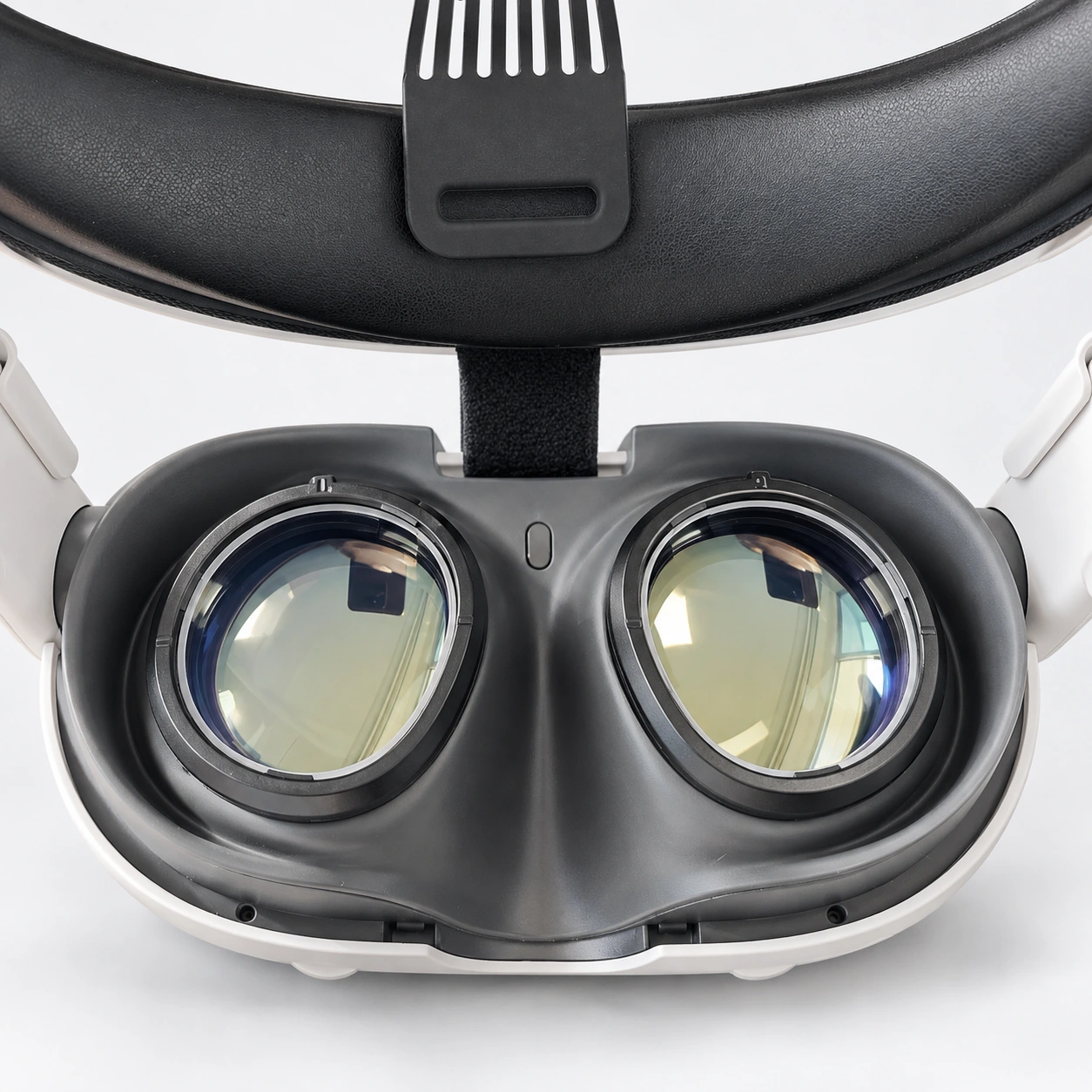
Quest 3 has a lens-spacing wheel, and its facial interface can adjust eye-to-lens distance. Meta’s support guidance describes using the top/back straps, headset angle, lens spacing and interface depth to improve fit.
Support the headset comfortably and make small adjustments while looking at the same central text. Follow Meta’s instructions for depth adjustment, with the headset off when changing the interface. Do not tighten the straps until your face is pressed hard against the lenses. If a small movement changes the view, record the comfortable position that helps.
Inspect the headset lenses and any installed insert for smudges or an obvious seating problem. In its Quest 3 clarity reply, Meta recommends a clean, dry microfiber cloth for the lenses. Follow the appropriate care instructions for each surface rather than assuming an ordinary glasses cleaner is suitable for the headset. See our installation and care guidance for the insert.
If the view starts clear and then clouds, follow our Quest 3 fogging checks before treating it as a prescription or rendering problem.
Check correction that is already present
If this is a shared or second-hand headset, check whether somebody else’s prescription inserts are installed. If you use your own inserts, confirm the device model and the right/left orientation. Fovevia’s Quest 3 inserts use magnetic attachment; follow the insert’s instructions when removing or refitting them. Do not prise at the headset’s original lenses.
If you already know you need distance correction, check that the submitted eyeglass prescription and signs were copied correctly. Ask the provider to review an uncertain order rather than selecting a stronger or weaker power yourself. If you have different reading, computer or distance prescriptions, use the prescription guide to prepare the full document and clarify the requested values.
When the problem stays inside one app
A headset’s physical display resolution is not the same as the resolution an app renders. Meta’s render-scale documentation explains the quality/performance tradeoff: lower rendering resolution can produce a softer or more jagged image. Its foveated-rendering documentation also describes reducing resolution toward parts of the image’s periphery.
Those developer choices help explain why two apps can look different on the same headset. They do not provide a single consumer setting that repairs every blurry screen. If the app exposes text-size or graphics options, compare one change at a time. For a streamed desktop, compare the same text on the source display and in a native headset view before focusing on the headset optics.
Correction inserts cannot restore detail that the source image never contained. If you have established a correction need, the Quest 3 insert page explains the current lens choices; it should not be treated as a guaranteed fix for rendering, streaming or hardware problems.
Give support a useful comparison
Record the exact device, whether inserts are installed, the app/source, which eye or area is affected, and whether native-menu text changes with fit. Add the adjustments you tried and when the issue began.
Ask Meta to review persistent headset or display behavior. For a Fovevia insert or order question, contact support@fovevia.com or our support page. If your vision also seems unclear outside VR, have an eye-care professional assess it instead of using headset adjustments as an eye test.
For Fovevia ordering steps, use the Prescription Guide and Installation & Care Guides. Browse all published help and buying articles in Guides.