Installation & Care Guides
Match your exact model, fit the inserts and keep your lenses clean.
Choose the guide for the exact model
Use the section that matches the model on your device and your Fovevia order. Quest 3 is different from Quest 3S. XREAL One / 1S and XREAL One Pro have different insert listings. A similar name or shape is not enough to confirm fit.
These guides use Fovevia product illustrations and the device manufacturers’ instructions. The illustrations show component positions. Quest inserts use magnetic attachment; XREAL One / 1S and One Pro use insert-type attachment. Match your exact model before fitting; these instructions do not guarantee clearance for every prescription and accessory.
Before fitting the inserts
Each of the four product groups covered here includes one left/right lens pair, one lens-cleaning cloth and one storage case. Check those items when opening the order. The headset or display glasses are not part of the lens order.
Step 1. Compare the device model with the order and product label. Check the product for damage and confirm that the required frame or mounting parts are present.
Step 2. Place the device securely with the interior accessible. Keep fingers on the insert frame or bridge rather than the optical surface.
Step 3. Identify left and right from the wearer’s position. An R marking belongs at your right eye when wearing the device, which may appear on the left in a picture viewed from the front.
Step 4. Check any attachment and removal instructions provided for your pair. Do not take apart the lens holder or remove the device’s original optical components to match an exploded illustration.
Do not force, bend, file or glue a part to make it fit. If the mounting parts differ from the illustration or their attachment method is unclear, keep them unchanged and ask support@fovevia.com for the instructions for that pair.
Meta Quest 2 / Quest 3S
For: the Fovevia Quest 2 / Quest 3S insert listing. It does not cover Quest 3 or Quest Pro.
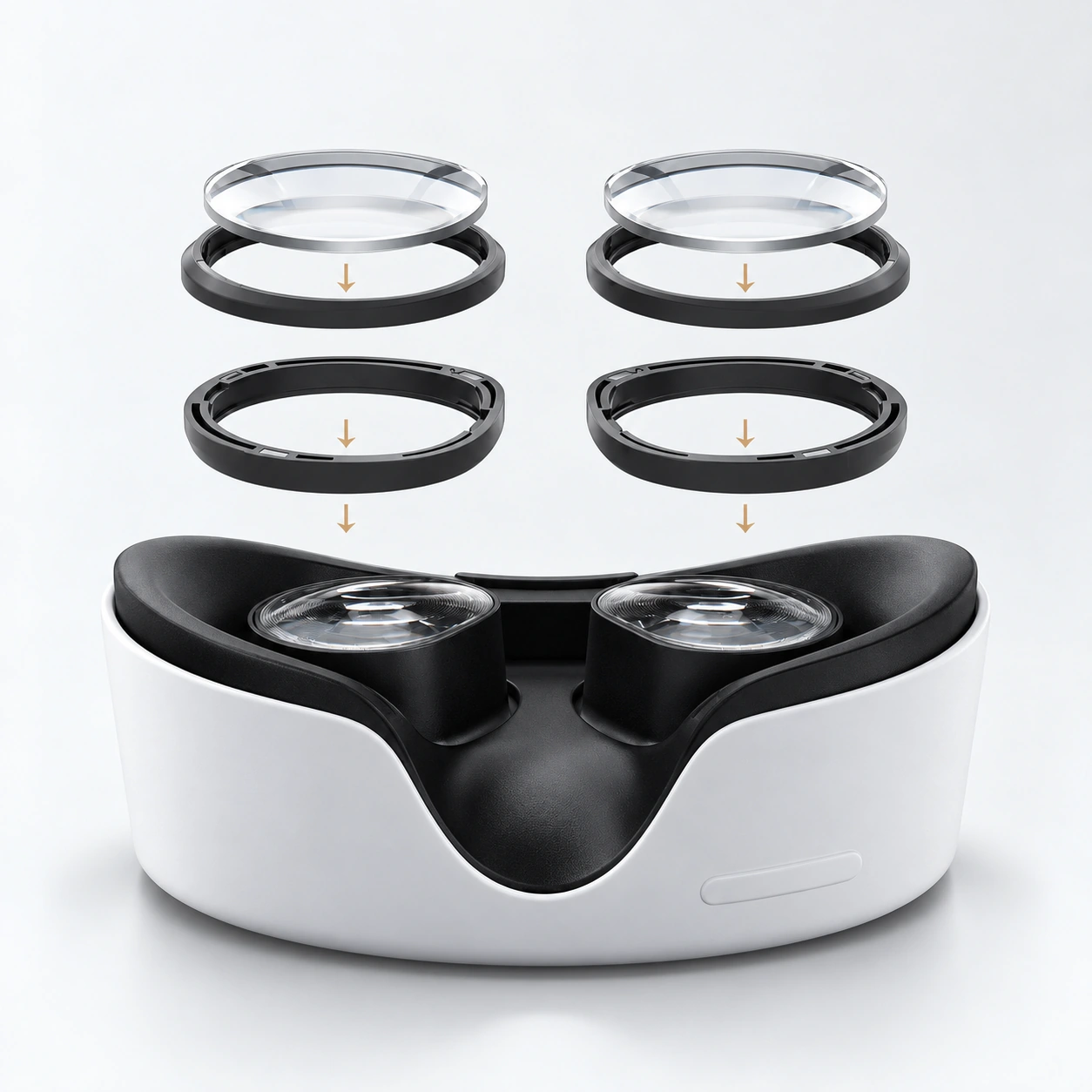
Step 1. Match the two sides. Identify the left and right framed inserts from their markings or supplied labels before bringing either part over an eyepiece.
Step 2. Locate the mount around the eyepiece. Compare the frame outline with the lens surround shown in the illustration. Keep the insert lens clear of the headset’s original optical surface.
Step 3. Align the complete assembly. Position the appropriate framed insert over its matching eyepiece. If your pair has a separate base and lens holder, identify those parts without separating the optical lens from its frame.
Step 4. Connect the magnetic mount. Keep hold of the frame, align it with its matching magnetic mounting position and guide it gently into place. Check that the frame sits evenly and stays in its intended position; do not press on the clear lens.
Step 5. Check the fit while wearing the headset. Use the headset’s normal fit settings. Check clearance from your nose, eyelashes, face interface and original lenses before continuing.
For removal, take off the headset, hold the removable insert by its frame and gently pull the frame away from its magnetic mount. Do not pull the optical lens or lever against the headset lens. Leave a separate lower mounting base in place if its removal method is unclear.
Meta Quest 3
For: the Fovevia Quest 3 insert listing, without the S suffix.
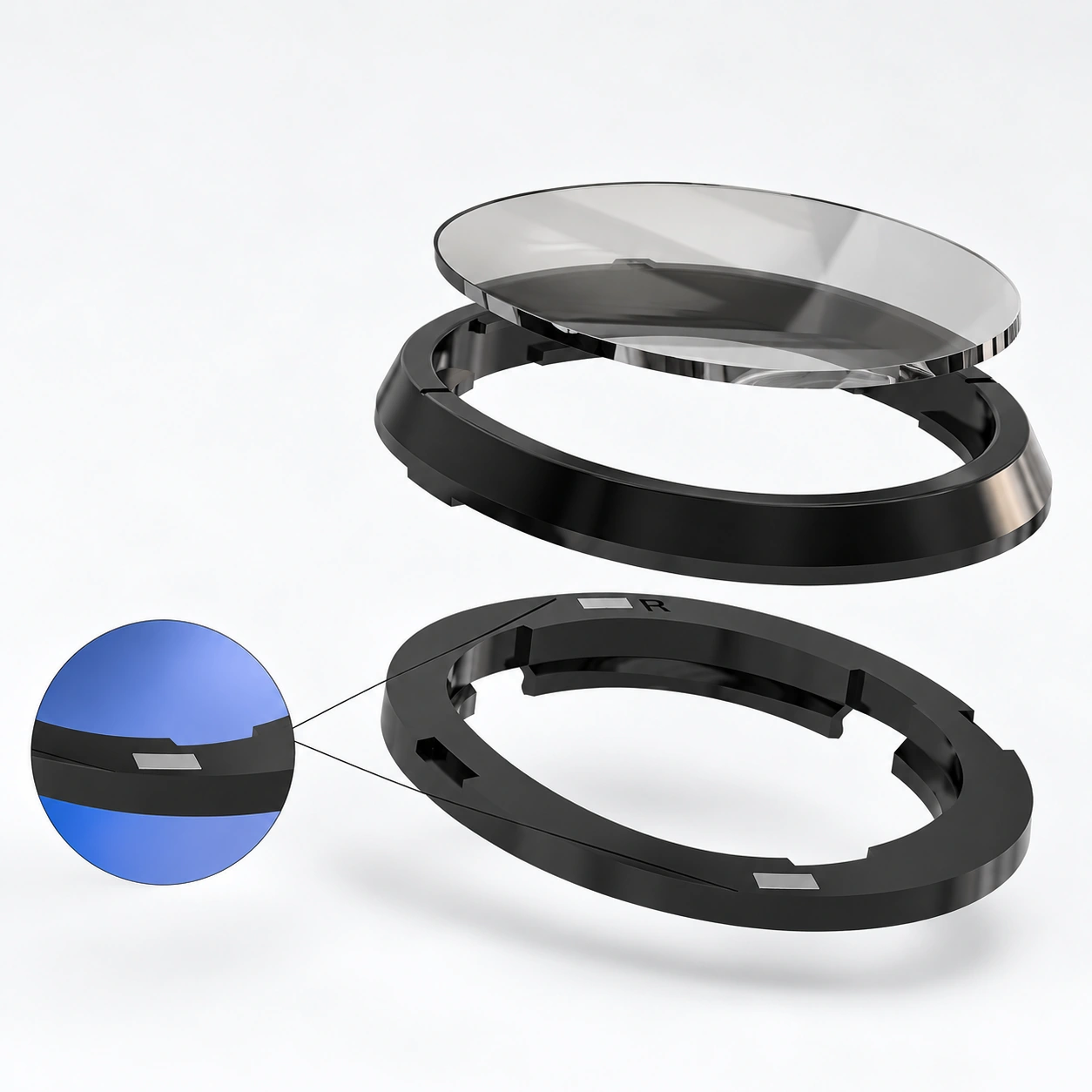
Step 1. Identify the right-eye assembly. Use the R marking where provided; match the other assembly to the left-eye label. Check from the wearer’s perspective.
Step 2. Inspect the component relationship. The illustrated lens holder sits above a base ring. Compare this with the parts you received; keep an assembled optical lens in its holder.
Step 3. Align each mount to its matching Quest 3 eyepiece. Keep the original lens uncovered by your fingers and clear of the insert’s optical surface while positioning the frame.
Step 4. Connect the magnetic mount. Hold the lens frame, align it with the matching magnetic mounting position and guide it gently into place. Keep the holder aligned with its base, then check that the assembly sits evenly and securely without pressing on the clear lens.
Step 5. Check clearance and the displayed image. Adjust the headset fit normally, then confirm neither insert contacts your face or the original optics. Confirm the full image is visible before extended use.
A different face interface or spacer can change clearance. A headset-compatible insert does not by itself establish compatibility with every third-party accessory. To remove the insert, take off the headset, hold the removable lens frame and gently pull it away from its magnetic mount. Do not pull the lens surface or remove a separate lower base when its removal method is unclear.
XREAL One / XREAL 1S
For: the Fovevia XREAL One / 1S listing. It does not cover One Pro or the Air series. XREAL’s current FAQ confirms One and 1S use the same prescription-insert design.
This product uses an insert-type attachment at the bridge.
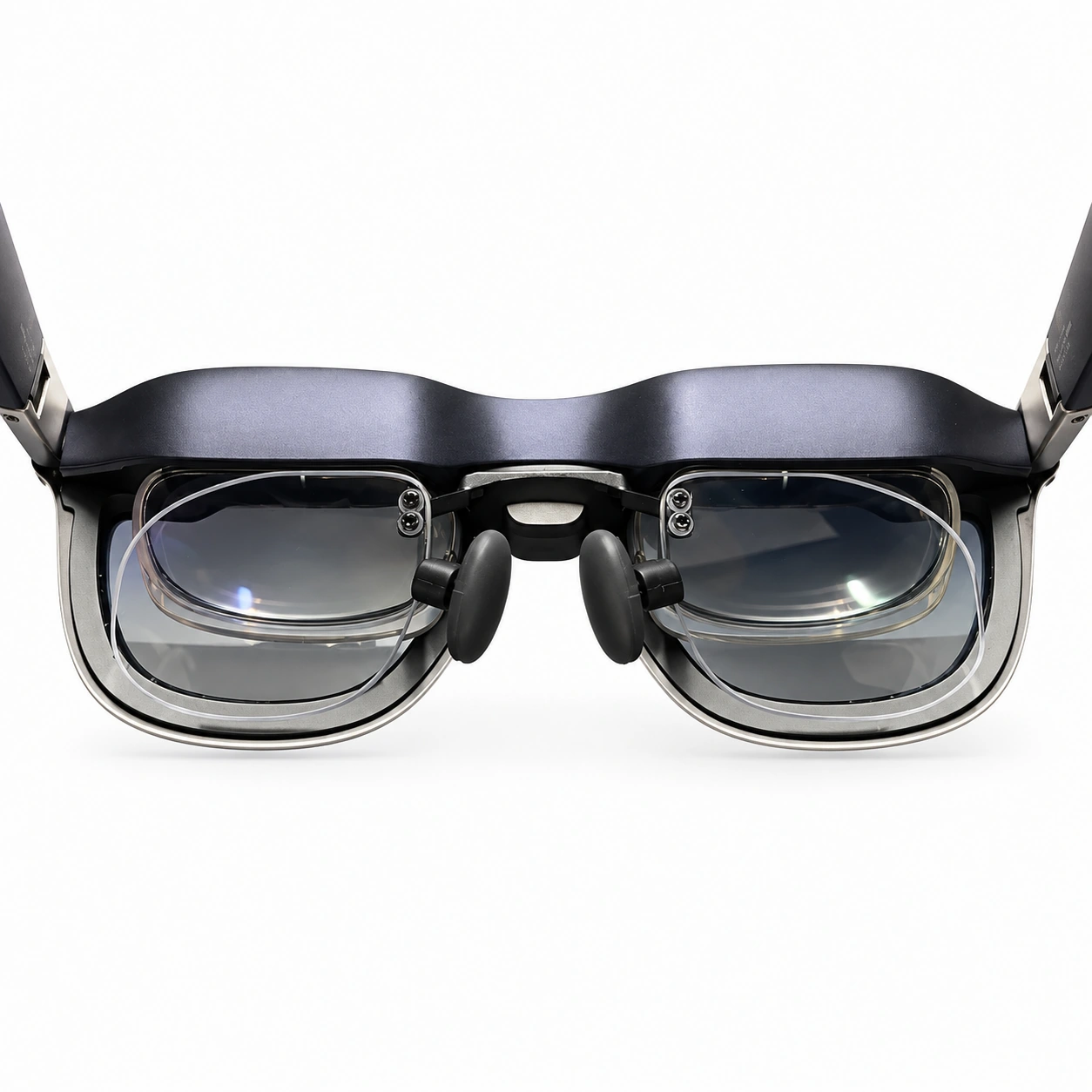
Step 1. Open the arms and locate the bridge from inside the glasses. The manufacturer diagram shows two mounting holes on the underside of the bridge above the nose pads.
Step 2. Check for the small plugs covering the mounting holes. Where present, remove the plugs as shown in the manufacturer diagram and keep them. Do not enlarge the holes or substitute a tool that could damage the bridge or lenses.
Step 3. Orient the insert behind the device optics. Hold its bridge and align its two upright mounting posts with the two holes. Keep both lens surfaces clear of the device optics.
Step 4. Guide the posts into their matching holes in the direction shown. The insert approaches from below the bridge. Keep the two sides aligned; if they do not enter or remain seated without force, pause and ask for help.
Step 5. Check the seated insert. Confirm that it is stable, the nose pads remain correctly positioned, and the arms can move without pressing against the insert. Do not force the arms fully closed if they contact the lens assembly.
Step 6. Adjust viewing fit. XREAL’s instructions allow choosing the nose-pad size and one of three temple positions. Use those device adjustments to center the image and see its full area after installation.
See the official XREAL One manual, XREAL 1S manual and One-series fit adjustments. For the release method on your supplied Fovevia bridge, use its instructions rather than twisting or pulling the lenses.
XREAL One Pro
For: the Fovevia XREAL One Pro listing. Confirm the Pro suffix and your glasses version. A One / 1S or Air-series insert is not a substitute.
This product uses an insert-type attachment at the bridge.
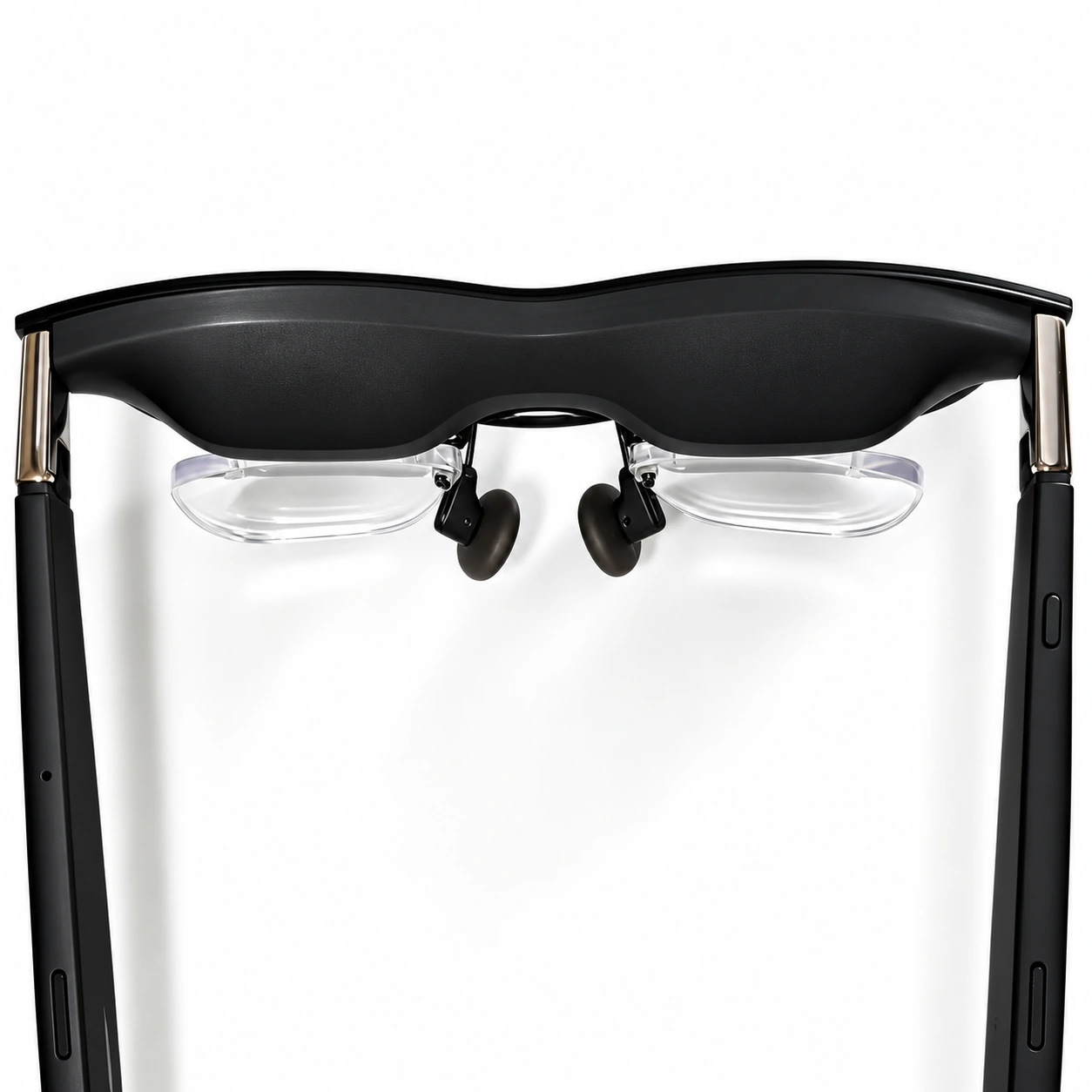
Step 1. Take out the complete insert and check its bridge. Keep the lenses attached to their supplied holder. Open the glasses’ arms to access the inside.
Step 2. Locate the two holes under the bridge, above the nose pads. Remove the small silicone plugs where fitted, following the manufacturer’s installation diagram. Retain the plugs.
Step 3. Align the insert’s two posts with the holes. The lenses sit behind the glasses’ optics and the bridge sits above the nose pads. Keep both posts aligned with their own mounting points.
Step 4. Guide the posts upward into the matching holes. This is the orientation shown by the official manual and the product installation graphic. Avoid pressure on the optical surfaces and do not bend the posts to compensate for a mismatch.
Step 5. Inspect the installed position. Check that the insert stays seated, that the nose pads remain usable, and that the arms do not press on the insert when moved. Adjust the glasses’ nose-pad size and temple position as described by XREAL.
The official XREAL One Pro manual illustrates the mounting points and states that the One and One Pro prescription lenses are not interchangeable. Use the supplied Fovevia instructions for removal; do not pull the lens surfaces or twist the bridge.
Clean the correct surface, with the correct instructions
| Surface | Care guidance |
|---|---|
| Fovevia removable inserts | Fovevia’s current FAQ advises a clean, dry microfiber cloth and handling by the edges, unless the exact product guide specifies otherwise. Check the insert instructions before adding any liquid or cleaning treatment. |
| Original Meta Quest lenses | Meta advises microfiber cleaning, with gentle circular movement from the center outward. Its device-care guidance excludes chemical cleansers and alcohol and says not to use water or other liquids while cleaning the device. Use a dry cloth on the optical surfaces. |
| XREAL One-series device lenses | XREAL’s current FAQ advises a soft microfiber cloth. It permits a mild neutral cleaner when necessary, followed by thorough drying. This is a rule for the XREAL device; it does not confirm that the same cleaner is suitable for Fovevia insert coatings. |
Keep a clean cloth for optical surfaces. Store removed inserts clean and dry in a protective container without pressure on the lenses or mounting posts. Before removal for cleaning, use the release instructions for the exact mount.
Official device guidance: Meta Quest cleaning and XREAL One-series FAQ.
If the fit or image does not look right
Step 1. Recheck product identity and orientation. Compare the device and insert with the order; confirm right and left from the wearer’s position.
Step 2. Check mounting and contact points. Look for an uneven frame, a loose bridge, lens-to-lens contact, pressure on the nose or eyelashes, or an accessory touching the insert. Stop using a setup that presses on the lenses or your face.
Step 3. Use normal device adjustments. For XREAL, check nose-pad size and temple position. For Quest, follow the headset’s own fit guidance. Do not alter your prescription values to troubleshoot an image.
Step 4. Record what you observe. If a viewing problem remains, stop use and contact the Fovevia team. Describe blur, cropping, looseness or the contact point without diagnosing the cause yourself.
Include your order reference, exact model and variant, relevant accessory names and clear images of the fitted frame or bridge. Keep the item, packaging and original order information. Use Support and Returns & Refunds to find the appropriate issue route.
General installation questions can be sent to support@fovevia.com. Do not include prescription documents or complete values in the general Contact form.