If the center of your XREAL One Pro screen is readable but the sides are soft or cut off, check the hardware size and fit before buying prescription inserts. An insert can provide correction you need; it does not change the glasses’ IPD size or guarantee clear edges.
Start with one familiar screen containing text in the center and near both sides. Keep that content unchanged while trying the normal adjustments. A moving target—different text, a different app and a new nose pad at once—makes an improvement difficult to interpret.
These checks are for One Pro. If you have Air 2 Pro, use its separate fit and blurry-text article; One Pro’s hardware sizes and IPD menu should not be assumed to apply.
Check the M or L hardware size first
XREAL’s One Pro listing and current IPD tutorial give two supported ranges:
| One Pro size | Published IPD range |
|---|---|
| M | 57–66 mm |
| L | 66–75 mm |
Compare the model you received with your measured interpupillary distance—the distance between your pupils. Frame width and prescription power do not supply that measurement. If it is uncertain or sits at the shared boundary, ask XREAL about the hardware choice before treating a menu adjustment as the answer.
The distinction matters because software adjustment works within the selected model’s range. It does not turn an M frame into an L frame. Prescription lenses do not change that hardware choice either.
Notice whether the readable area moves with the frame
If lifting the glasses slightly clears one corner but softens the opposite edge, the viewing position is affecting what you can see. That is useful information about fit, not a diagnosis of faulty optics or a prescription problem.
XREAL’s One-series user guide describes three nose-pad sizes and three temple-angle settings. Try the supplied adjustments one at a time, following its illustrations. Look for a comfortable view that remains usable when you let go of the frame; having to hold it in one precise position is not a finished setup.
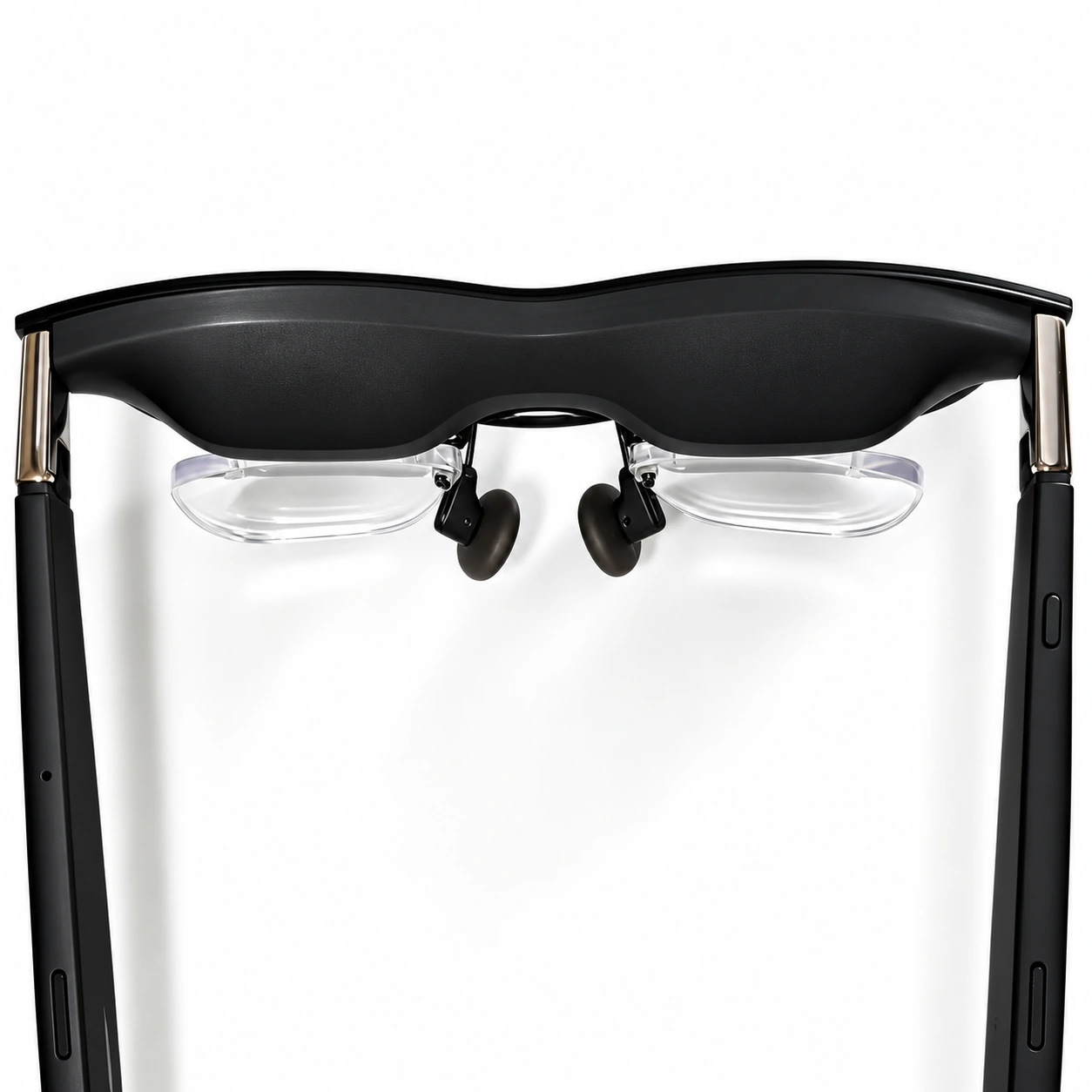
If an insert is fitted, check that it is the correct One Pro assembly and seated as instructed. Use the matching installation guidance. Do not press on the lens or force a part that does not align. The image above identifies the insert area; it cannot establish the clearance of your own finished assembly.
Use the IPD menu within the supported range
After checking the hardware size and normal fit, follow XREAL’s current tutorial: double-click the X button to open the OSD, enter Spatial Screen, find IPD Adjustment and use the +/− controls for small changes. Menu labels can differ from older guides, so use the linked tutorial rather than an unrelated model’s instructions.
Compare the same text as you adjust. XREAL notes that IPD adjustment may slightly reduce the maximum screen size and farthest screen distance. Decide whether the resulting view works for your task; a smaller screen is a trade-off, not evidence that the glasses now provide a different optical prescription.
Separate a display setting from a correction need
Try similar text in a second app or on another compatible source you already have. If the difficulty occurs in only one source, investigate that difference before ordering lenses to fix it. Enlarging tiny labels can also make a task easier without establishing why the original text looked soft.
An edge that remains blurry is not a reason to change SPH, CYL or ADD yourself. Use the eyeglass prescription requested for the product. The Prescription Guide explains document preparation; an eye-care professional should resolve uncertainty about your prescription or vision.
Once the hardware, fit and correction requirements are clear, review the Fovevia One Pro lens information. The XREAL collection keeps that route separate from One/1S and other models. Buying an insert is not a test of whether the glasses or source display are working correctly.
When the normal checks leave an unresolved view
For XREAL support, describe the M/L model, measured IPD, normal fit settings, source/app and whether the difficulty affects the center, an edge or one side. Explain which single adjustment changed the view. That is more useful than repeating every test or reporting only “blurry.”
For a Fovevia insert or order question, use Fovevia Support or email support@fovevia.com. If the fit is uncomfortable, stop rather than tightening or bending parts further. Vision uncertainty outside the glasses belongs with an eye-care professional.
Other published device and prescription articles are available in Guides.