If your Meta Quest 3S looks blurry, check its lens position and how the headset sits before deciding to buy an accessory. A prescription insert can provide the correction you need, but it cannot fix every reason that text looks soft.
The Quest 3S uses Fresnel lenses with three lens-spacing positions. That matters when following instructions online: the controls are different from those on Quest 3. If the label on your headset says Quest 3 without the S, use our Quest 3 blurry-text checks.
Find where the blur appears
Choose a line of text in the headset’s own menu as a reference. Use the same line when comparing positions, rather than switching between a game, a video and the room around you.
| What you notice | What to check next |
|---|---|
| The headset menu and several VR apps are hard to read | Start with lens spacing, headset position, clean lenses and your usual vision correction. |
| The menu is readable but one app looks soft | Check that app or content source before buying lenses to solve the problem. |
| The real room looks soft in passthrough | Treat this as a separate observation from virtual-menu clarity; describe both to Meta support if you need help. |
A video recorded inside the headset is not a reliable demonstration of how the view looks through the lenses to your eyes. Keep the distinction in mind when comparing your experience with a sharp-looking online clip.
Adjust the Quest 3S lens spacing and fit
Meta’s fit instructions include a separate Quest 3S section. Start seated, with the straps loose, then work through its controls:
- Position the headset comfortably and adjust the side straps. Use the top strap to support its weight.
- Take the headset off before changing lens spacing. Hold the outer part of a lens assembly, keeping your fingers off the optical surface, and gently move it sideways until it clicks into another of the three positions. Put the headset on again to compare the view.
- Adjust the top strap to change the headset’s height on your face, and gently change its tilt at the strap-arm pivots.
- Check that the view remains usable when you move your head. Readjust if the headset slips or bounces.
For the comparison, change one thing at a time and return to the same menu text. If a small change in height improves it, keep that position while checking the next adjustment. Follow the dedicated Quest 3S section on Meta’s page.
Check glasses clearance and the viewing area
Quest 3S includes a glasses spacer for use with eyeglasses, as shown in Meta’s product specifications. Check the spacer and fit if you are using ordinary glasses. Tightening the headset until the glasses or lenses press against another surface is not a useful clarity test.
Keep smudges separate from focus problems. For the headset’s optical lenses, follow Meta’s current cleaning instructions: use a clean, dry microfiber cloth and avoid alcohol or chemical lens cleaners. Removable prescription inserts have their own care instructions; a product intended for one coating should not be assumed safe for another.
Once the center text is readable, notice whether softness appears mainly when you look toward an edge. Quest 3S has Fresnel optics, so it is useful to describe the position of the affected area rather than reporting only that everything is blurry. Compare the same text near the center of your view. This observation helps explain the issue; it does not establish a pass/fail threshold for your headset.
Bloom around bright text, persistent central blur and an image that looks different in one eye need accurate descriptions. Do not assume they all have the same cause. A prescription insert adds correction above the headset lens; it does not replace that lens, increase display resolution or repair a damaged optical surface.
Decide whether prescription inserts address the problem
If you already use glasses, check the view with the vision correction you normally need and a comfortable, safe fit. If menu text remains unclear with that correction in place, buying inserts is not a way to confirm that the headset itself is working correctly. Resolve the uncertainty before ordering.
For an insert order, use the eyeglass prescription requested for the exact product. Keep right and left values and their signs as written, and ask for help when information is missing. Our prescription guide explains the ordering details; a contact-lens record or a headset spacing position should not be used to invent missing prescription values.
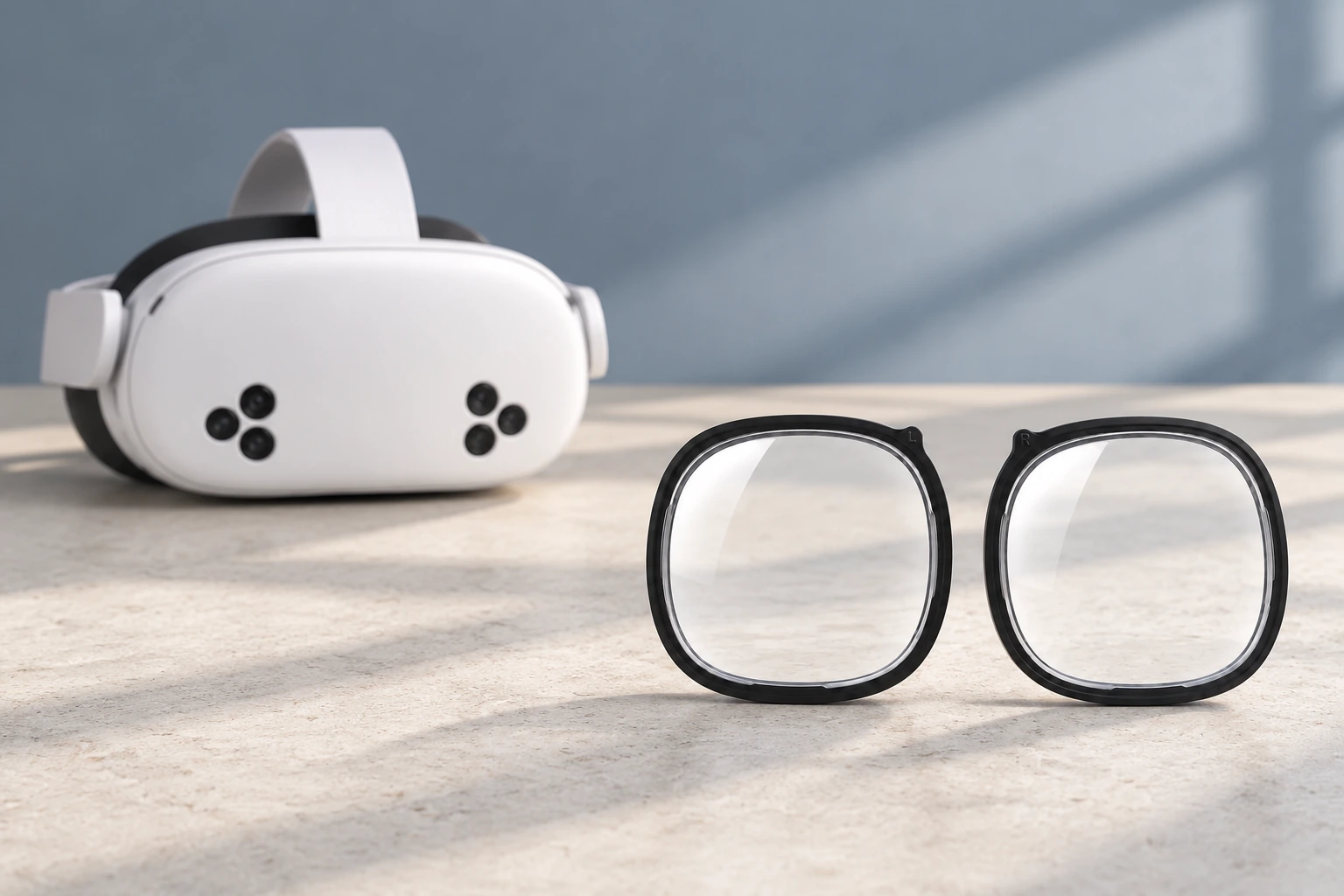
Fovevia’s Meta Quest 2 and Quest 3S prescription inserts are the relevant product path for a confirmed Quest 3S. Check the current listing for options and the displayed order total. If you are reusing an older pair, confirm the exact frame and attachment first with our Quest 2, Quest 3 and Quest 3S compatibility article.
Ask for help with a specific symptom
If you still cannot get a usable view after the fit checks, contact Meta support about the headset. Explain whether the problem affects the virtual menu, passthrough, one app or one eye, and which fit adjustments changed it. Those details are more useful than a general report that the display is blurry.
For a question about a Fovevia insert, attachment or submitted order details, use Fovevia support. Include the exact headset and insert model. Stop the check if the fit is uncomfortable; repeated tightening or buying another accessory is not a substitute for identifying the problem.