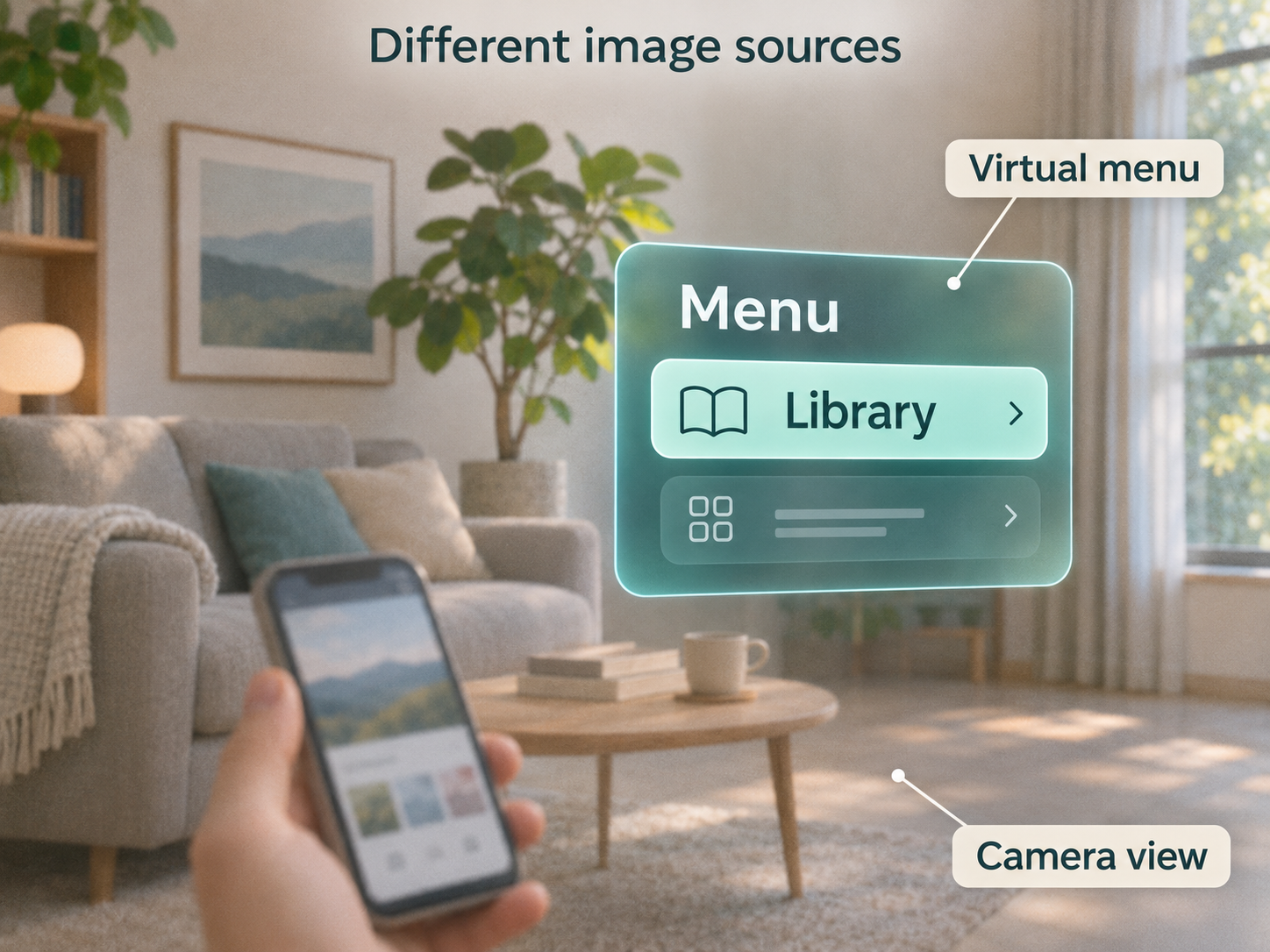
If your Quest 3 menus are readable but the room behind them looks soft or grainy, separate those two observations before changing lenses. A virtual button and the camera view of your desk can appear together while carrying different image detail.
That difference prompted one Quest 3 owner to ask why the interface looked good while the room resembled an old television and phone text was difficult to read. The useful question is what looks unclear: the whole headset view, ordinary objects, a physical screen, or the view inside one app.
First identify what looks soft
Meta’s passthrough explanation describes external cameras capturing the surroundings, with virtual content rendered over that feed. Reading a virtual menu therefore checks something different from reading a phone through the cameras.
Use your usual comfortable headset position and keep any vision correction you need in place. Look at the headset’s own menu and its system passthrough view before opening a mixed reality app. Then choose the description that matches what you see.
| What you can observe | Where that comparison leads |
|---|---|
| The menu and ordinary VR content are soft too. | Start with the general headset clarity checks, rather than isolating passthrough. |
| The menu is readable, but ordinary room objects look soft or grainy. | Compare room lighting and the system passthrough view. |
| Ordinary objects are recognizable, but small text on a physical phone or monitor is difficult. | Keep the physical-screen task separate from general room visibility. |
| System passthrough is usable, but one MR app looks different. | Note the app and compare it in the same room conditions. |
| The problem appears only when using a connected PC. | Follow the PCVR comparison instead of applying its settings to passthrough. |
For the first pattern, use our general Quest 3 blurry-text checks. For the last, the PCVR-only clarity article separates the desktop, game and connection. A readable menu alone does not certify every part of the headset as fault-free.
Give the room lighting a fair comparison
Meta’s consumer guidance offers a practical reference: can you comfortably read a book in the room? Check that with the headset off, using whatever correction you normally need for reading. The aim is to describe the room’s lighting, rather than use tiny phone text as the lighting test.
While seated, compare the same ordinary object under your original lighting and comfortable additional room lighting. A mug or a door frame gives you something recognizable without requiring fine print. Keep your position and the object unchanged so you can notice whether the grain or softness changes. There is no need to walk around or approach objects through passthrough.
The book test is a lighting reference. It does not guarantee legible phone text or establish whether a particular headset has a fault. If the view changes, describe the change; if it remains difficult to use, retain that result too.
Check the phone as a separate task
A room can be recognizable while the small letters on a phone remain hard to read. Record that distinction instead of calling the entire view out of focus. Keep the phone’s content and brightness unchanged during a lighting comparison, so you are not changing both at once.
Meta’s developer guidance cautions against requiring users to read fine text through passthrough. When you need to read a message or document accurately, take the headset off and use the original screen or page. Moving the phone increasingly close is not a useful way to choose a lens power.
If this raises a separate question about distance versus reading correction, our VR prescription-distance explanation covers that distinction. Difficulty with one camera-view task is not enough to select a different prescription.
See whether the change follows an app
Return to the headset’s system passthrough view, then compare the MR app in the same place and lighting. If the difference appears only in that app, its name and version become useful information for the developer. If it is present in the system view too, tell Meta that it is not confined to one app.
For a persistent problem or a marked change from your previous experience, give support the headset software version, when it began, and the observations above: menu readability, ordinary room objects, physical-screen text and system-versus-app behaviour. This is more specific than asking whether all passthrough should look sharper, without assigning a cause you have not established.
Prescription inserts can address a correction need, but they cannot add detail missing from the camera image.